
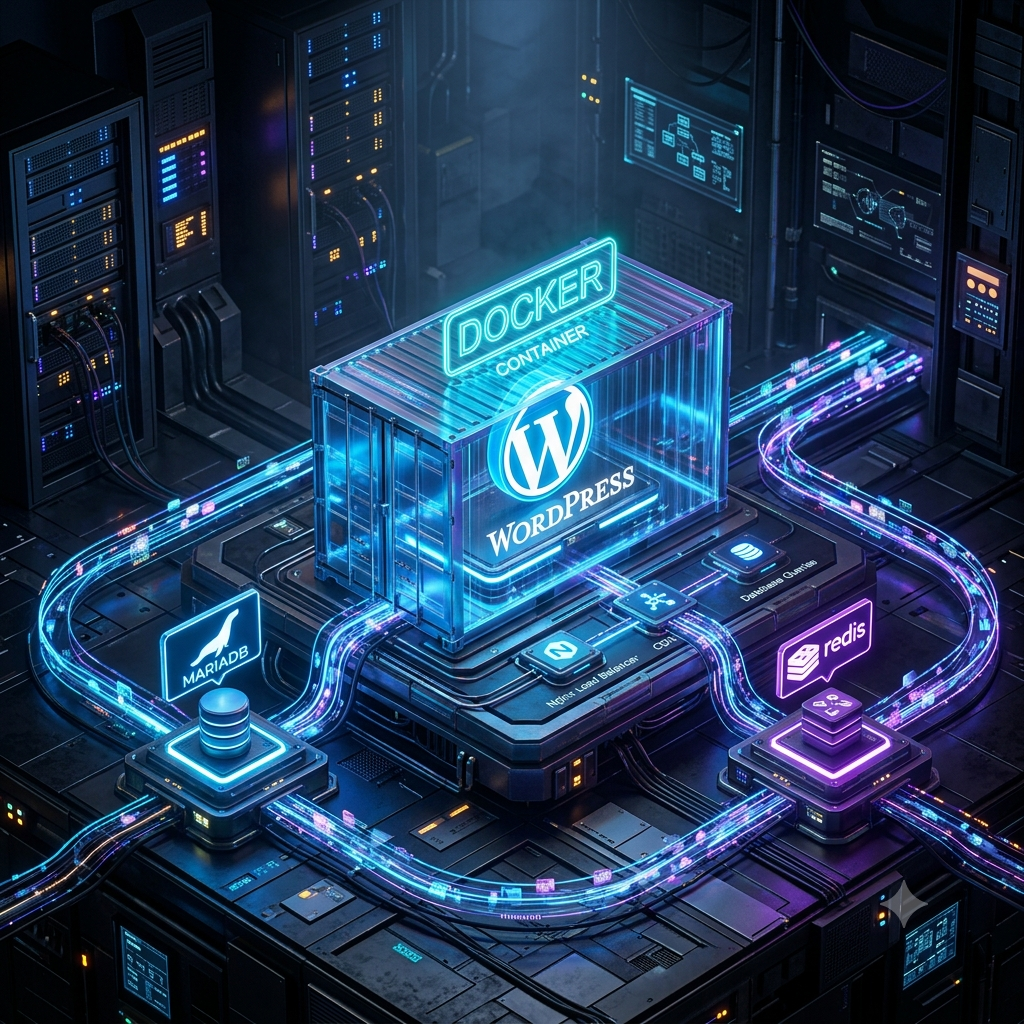
Moving WordPress to Docker requires more than just pulling the default image. If you want a production-grade environment that handles high traffic, serves next-generation images flawlessly, and traps potential security breaches in an isolated sandbox, you need a specialized architecture.
This guide walks through building an enterprise-level WordPress Docker stack behind a global Nginx reverse proxy. We will cover implementing Redis object caching, integrating CompressX for WebP/AVIF delivery on bare metal, fixing WP-CLI, and automating dynamic Nginx logging.
1. The Architecture Strategy
Before touching configuration files, it is crucial to understand why this stack is structured the way it is:
- MariaDB over PostgreSQL: While Postgres is an incredibly powerful database engine, WordPress core and the vast majority of its plugins are hardcoded for MySQL syntax. Using PostgreSQL requires fragile translation layers that break easily. MariaDB provides high performance while maintaining 100% native WordPress compatibility.
- Isolated Filesystem Security: Instead of mounting the entire WordPress installation to the host machine, we only mount the wp-content directory. This traps all themes, plugins, and uploads in an isolated folder. If a plugin vulnerability is exploited, the attacker cannot rewrite core files like wp-config.php because they only exist inside the immutable container memory.
- Bare-Metal Image Delivery: Running CompressX (or similar image optimization plugins) behind a Docker proxy can bottleneck performance. We configure our global Nginx to read the WebP/AVIF files directly from the host’s physical hard drive, bypassing Docker entirely for static media delivery.
2. The Configuration Files
To keep credentials secure and make spinning up new websites effortless, decouple your configuration from your deployment script using a .env file.
The .env File
Create this file in your project directory (e.g., /var/www/site1-files/.env):
# --- SYSTEM ENVIRONMENT CONFIGURATION ---
SITE_ID=site1
HOST_WEB_PORT=8081

# --- HOST PATHS ---
# Point directly to your host's wp-content directory for security
HOST_CONTENT_PATH=/var/www/site1-files/wp-content

# --- DATABASE CREDENTIALS ---
DB_TABLE_PREFIX=wo_
DB_ROOT_PASSWORD=your_secure_root_password
DB_NAME=your_database_name
DB_USER=your_database_user
DB_PASSWORD=your_secure_db_password

# --- REDIS CONFIGURATION ---
REDIS_PASSWORD=your_secure_redis_password
REDIS_MAX_MEMORY=256mb
The Custom Dockerfile
Because the official WordPress image lacks the command-line tools needed to run internal database checks, create a Dockerfile in the same directory to inject WP-CLI and the MariaDB client binaries:
FROM wordpress:latest

# Install MariaDB client binaries for database connection checks
RUN apt-get update && apt-get install -y mariadb-client && rm -rf /var/lib/apt/lists/*

# Download and install WP-CLI natively
RUN curl -O https://raw.githubusercontent.com/wp-cli/builds/gh-pages/phar/wp-cli.phar \
    && chmod +x wp-cli.phar \
    && mv wp-cli.phar /usr/local/bin/wp
The docker-compose.yml File
This script ties the database, object cache, and web application together securely using an internal bridge network.
version: '3.8'

services:
  db:
    image: mariadb:10.11
    container_name: ${SITE_ID}_db
    restart: always
    volumes:
      - db_data:/var/lib/mysql
    environment:
      MYSQL_ROOT_PASSWORD: ${DB_ROOT_PASSWORD}
      MYSQL_DATABASE: ${DB_NAME}
      MYSQL_USER: ${DB_USER}
      MYSQL_PASSWORD: ${DB_PASSWORD}
    networks:
      - site-network

  redis:
    image: redis:7-alpine
    container_name: ${SITE_ID}_cache
    restart: always
    command: >
      redis-server
      --appendonly yes
      --requirepass ${REDIS_PASSWORD}
      --maxmemory ${REDIS_MAX_MEMORY}
      --maxmemory-policy allkeys-lru
    volumes:
      - redis_data:/data
    networks:
      - site-network

  wordpress:
    build:
      context: .
      dockerfile: Dockerfile
    container_name: ${SITE_ID}_core
    restart: always
    ports:
      - "127.0.0.1:${HOST_WEB_PORT}:80"
    depends_on:
      - db
      - redis
    volumes:
      # Mount ONLY wp-content to protect core files
      - ${HOST_CONTENT_PATH}:/var/www/html/wp-content
    environment:
      WORDPRESS_DB_HOST: db
      WORDPRESS_DB_USER: ${DB_USER}
      WORDPRESS_DB_PASSWORD: ${DB_PASSWORD}
      WORDPRESS_DB_NAME: ${DB_NAME}
      WORDPRESS_TABLE_PREFIX: ${DB_TABLE_PREFIX}
      WORDPRESS_CONFIG_EXTRA: |
        define('WP_REDIS_HOST', 'redis');
        define('WP_REDIS_PASSWORD', '${REDIS_PASSWORD}');
        if (isset($$_SERVER['HTTP_X_FORWARDED_PROTO']) && $$_SERVER['HTTP_X_FORWARDED_PROTO'] === 'https') {
            $$_SERVER['HTTPS'] = 'on';
        }
    networks:
      - site-network

volumes:
  db_data:
    name: ${SITE_ID}_db_volume
  redis_data:
    name: ${SITE_ID}_redis_volume

networks:
  site-network:
    name: ${SITE_ID}_isolated_network
    driver: bridge
3. Global Nginx & CompressX Integration
By offloading image delivery to the global Nginx reverse proxy, your Docker container is free to spend its CPU cycles executing PHP logic instead of serving heavy static files.
Create a shared configuration snippet at /etc/nginx/snippets/wordpress.conf:
# --- AUTOMATIC DYNAMIC LOGGING ---
# Generates unique log files based on the requested domain
access_log /var/log/nginx/${host}_access.log;
error_log  /var/log/nginx/${host}_error.log warn;
open_log_file_cache max=1000 inactive=20s min_uses=2 valid=1m;

# --- COMPRESX CAPABILITY DETECTORS ---
set $ext_avif ".avif";
if ($http_accept !~* "image/avif") { set $ext_avif ""; }

set $ext_webp ".webp";
if ($http_accept !~* "image/webp") { set $ext_webp ""; }

# --- IMAGE INTERCEPTOR ---
location ~ /wp-content/(?<path>.+)\.(?<ext>jpe?g|png|gif|webp)$ {
    add_header Vary Accept;
    add_header Cache-Control "public, max-age=31536000, immutable";
    expires 365d;
    log_not_found off;

    # Prioritize AVIF, fallback to WebP, then original, then Docker
    try_files
        /wp-content/compressx-nextgen/$path.$ext$ext_avif
        /wp-content/compressx-nextgen/$path.$ext$ext_webp
        /wp-content/$path.$ext
        @docker_fallback;
}

# --- STATIC ASSETS CACHING ---
location ~* \.(css|js|ico|svg|ttf|woff2?)$ {
    expires max;
    log_not_found off;
    access_log off;
    try_files $uri @docker_fallback;
}

# --- DEFAULT DOCKER ROUTING ---
location / {
    proxy_pass http://127.0.0.1:$wordpress_port;
    proxy_set_header Host $host;
    proxy_set_header X-Real-IP $remote_addr;
    proxy_set_header X-Forwarded-For $proxy_add_x_forwarded_for;
    proxy_set_header X-Forwarded-Proto $scheme;
}

location @docker_fallback {
    proxy_pass http://127.0.0.1:$wordpress_port;
    proxy_set_header Host $host;
}
Now, your individual domain server blocks remain incredibly lean:
server {
    listen 443 ssl http2;
    server_name theswanlake.com;

    ssl_certificate /etc/letsencrypt/live/domain/fullchain.pem;
    ssl_certificate_key /etc/letsencrypt/live/domain/privkey.pem;

    root /var/www/site1-files;
    set $wordpress_port 8081; # Matches your .env HOST_WEB_PORT

    include snippets/wordpress.conf;
}
4. Execution & Maintenance
With your files in place, executing the environment and maintaining it is straightforward.
docker compose up -d --build
Fix Nginx logging permissions
Because dynamic logging creates files under the web user, grant Nginx ownership of the logging directory on the host:
sudo chown -R www-data:adm /var/log/nginxFix Redis overcommit memory
Ensure the host Linux kernel allows Redis to save background forks without crashing:
(To make this permanent, add vm.overcommit_memory=1 to /etc/sysctl.conf).
sudo sysctl vm.overcommit_memory=1Build and launch the stack
Navigate to your project folder and spin up the containers:
docker compose up -d –build
Fix WP-CLI database checks
Newer MariaDB clients strictly enforce SSL, which causes internal Docker network connections to fail. Map a quick alias in your ~/.bashrc to bypass this for internal commands:
alias wp1="docker exec -it -u www-data site1_core wp --ssl=false"You can now run database commands safely:
wp1 db check or wp1 cache flush
By implementing this architecture, you isolate application logic into disposable containers, secure your filesystems against tampering, and guarantee that heavy resource lifting — like image optimization and caching — is handled precisely where it is most efficient.
Use it on your own responsibility.